Quickbooks Advertise

Showing posts with label Online Payroll and Accounting Software. Show all posts

Saturday, January 31, 2015

How to: Enter Delayed Charges Invoices in QuickBooks

Do you keep a bunch of post-its on your desk to remind you what products you bought and services you did for customers? Instead, use delayed charges to keep track and create invoices when the time comes.


Open Delayed Charge


Go to the Plus Sign Menu and under Customers choose Delayed Charge.


Enter the Customer


Enter the customer you need to invoice in the Choose a Customer field. If this is a new customer, click Add.


In the New Customer window click Save. Only the customer’s name gets saved. You can go to the customer page later to enter additional information.


Enter the Date


Enter the date you purchased the product or performed the service for your customer.


Enter the Products or Services


Enter the products or services you provided for this customer and any information about this product or service.


If this is a new product or service, type it in and click Add.


Choose the Income Account


In the Product or Service Information window, choose the Income Account. This is not a bank account it is a bookkeeping account.


Enter the Price or Charge


Enter the Price or Charge and Save it.


Save and Close


You can Save and Close or if you have new charges to add, click Save and New.


Invoice Your Customer


When it comes time to invoice your customer, go to Plus Sign Menu and under Customers choose Invoice.


Enter that customer’s name and click Add all to put this charge into the invoice.


Finished


Get QuickBooks for Free at : Click HERE

How to: Receive a payment in QuickBooks

You got paid! Great--now you need to record the payment in QuickBooks. That's called receiving a payment. Watch this video to learn how.

Receive Payment

Go to the Plus Sign Menu and under Customers choose Receive Payment. Select the customer who paid you in the choose a customer field.


Enter the date you were paid.


Then enter the payment method.


For the Reference Number, enter the check number.


Undeposited Funds

When you receive payments that you’re going to deposit in a group, go to the Deposit Menu and choose the Undeposited Funds account. If you have already deposited this payment, then choose the account you deposited it to.


Click Save and New if you need to receive another payment, or Save and Close if you’re finished.


Recording Undeposited Funds

If you grouped the payment with other checks they appear automatically on the Bank Deposit page. To access this, go to the Plus Sign Menu and under Other choose Bank Deposit.


You can check each payment that you deposited. Make sure the payment method is correct and that the reference number has the proper check number for each check payment. Click Save and Close when you’re finished.


Finished


Get QuickBooks for Free at : Click HERE

Friday, January 30, 2015

Get Quickbooks for Free

Click HERE To get Your completely Free license of Quickbooks worth 400$ 


Run your business with QuickBooks.
Anytime. Anywhere


Simple online software for business owners to make informed decisions.

Get QuickBooks for Free at : Click HERE


QuickBooks Accountant 2015 All You Need To Know

Easy to set up, learn and use

- No accounting knowledge necessary
- Import data from Excel spreadsheets and previous versions of QuickBooks*
- Get a snapshot of your company finances and items that need your attention
- 60-day money back guarantee*

All the features of Simple Start plus:

- QuickBooks automatically pulls in data from your bank and credit card accounts, saving time and reducing data entry errors.*
- And it learns from your behavior to automatically classify transactions.
Tax Time is a Snap
Automatic Bank Data Download
Additional Add-on Capabilities

View larger

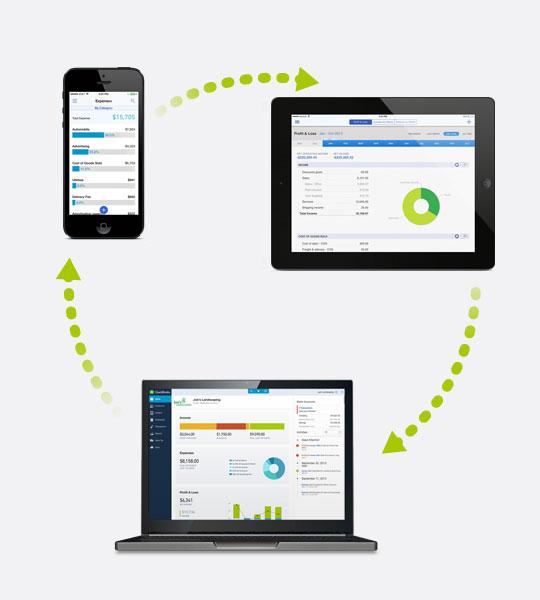
Stay productive on the go

- Anytime, anywhere access, from any device*, to help make your business more efficient.
- Automatic data backups & Product updates* – so you have the latest features and protection.
- Capture receipt photos on your mobile device. 

Paychecks in 3 easy steps

- Easily create paychecks
- Just enter hours and approve salaries
- Get instant paycheck calculations
- Print paychecks instantly


Pay Payroll Taxes

- Calculate federal and state payroll taxes
- Click to pay taxes electronically*
 

File Payroll Tax Forms

- Automatically fills in the latest federal and state forms for you
- Click to file federal and state tax forms electronically*


Get QuickBooks for Free at : Click HERE